
INVRPT (inventory report)
How the Fashionbits EDI app creates and sends inventory reports (INVRPT) to your suppliers.
An INVRPT (inventory report) tells a supplier how many of their articles you have in stock at which location — or what moved. Suppliers use it for replenishment and planning.
What a trading partner receives is set on the partner under Content: the current stock, the movements, or both as separate reports (see trading partners).
What is reported: current stock
Section titled “What is reported: current stock”Every stock report is a snapshot of the current stock:
- one message per location with a GLN, all in one interchange,
- the quantity per article (GTIN/barcode) — only articles of the vendors you assigned to the trading partner,
- as quantity either Available (not yet committed to orders or reserved) or On hand (all physical stock).
Because every report carries the complete stock, the next report automatically corrects a missed one. Articles without stock are left out by default — the partner then treats them as zero. A location where everything sold out is still sent as an empty message, so the partner drops its old numbers.
Variants without a barcode, variants that don’t track inventory and locations without a GLN aren’t reported; the report page points them out.
What is reported: movements
Section titled “What is reported: movements”A movement report lists relative quantities for a closed period — what was transferred between your locations and what was corrected. Every operation gets its own message, all in one interchange:
- Transfers — one message per shipment of a Shopify transfer between two of your locations, with the sending (from) and receiving (to) location, the ship date and the shipped quantity per article. Deliveries from a supplier (e.g. from a dispatch advice) aren’t transfers and aren’t reported here.
- Corrections — one message per location and day, with only that location and the change per article: negative when stock went missing (shrinkage, damage, count differences), positive when it turned up. Reported are the adjustment reasons you pick in Shopify for manual changes — correction, cycle count, theft or loss, damaged, quality control, promotion or donation, received and other. Sales and returns belong in the sales report and aren’t included.
The quantity is the same as in the stock report — Available or On hand, depending on the partner’s setting. A correction that is undone on the same day is left out.
Unlike stock, a missing movement report isn’t made up by the next one. If a period is missed, the app catches it up — oldest first; the report page marks it as Catch-up. A period without any movement isn’t sent.
Schedule and “Send now”
Section titled “Schedule and “Send now””Reports are created on the trading partner’s schedule — daily or weekly at the configured time, always for every location with a GLN. Stock is that of the sending day; movements cover the previous day for daily reports, or the previous week (Monday to Sunday) for weekly ones.
In the list, Content shows whether a report covers the current stock (type 35) or transfers & corrections in a period (type 78), and Created by who created it — or “Automatic schedule”.
Under Messages → INVRPT you can also start a report at any time: Send new INVRPT in the top right opens a dialog. Next to it, Configure outgoing messages leads to the sender GLN and the other settings for outgoing reports.
- Choose the trading partner — one without an active schedule works too. Below it you see which brands (vendors) the report covers; Edit partner lets you change them. If the partner still lacks brands or recipients, the dialog says so. Without brands no report can be created; without recipients you can only create it for review.
- Under Content, choose whether to report the current stock or the transfers & corrections in a period.
- For stock: tick the locations to report (locations without a GLN can’t be selected) and decide whether products and variants with zero stock are included. The option is preset from the partner’s settings and applies to this report only. For movements: choose the period — preset to the last closed one of the partner’s schedule, at most 60 days back.
- Send now creates the report and sends it right away. Create for review only creates it; you then send it yourself from its page.
Either way the app opens the new report’s page right away. It updates itself until the report has been created or sent.
Reviewing a report
Section titled “Reviewing a report”A report’s page is laid out like an incoming dispatch advice: the overview on the right (status, trading partner, recipients, inventory date, locations, sender and recipient GLN, references, delivery history), and two views on the left, in the order the data flows:
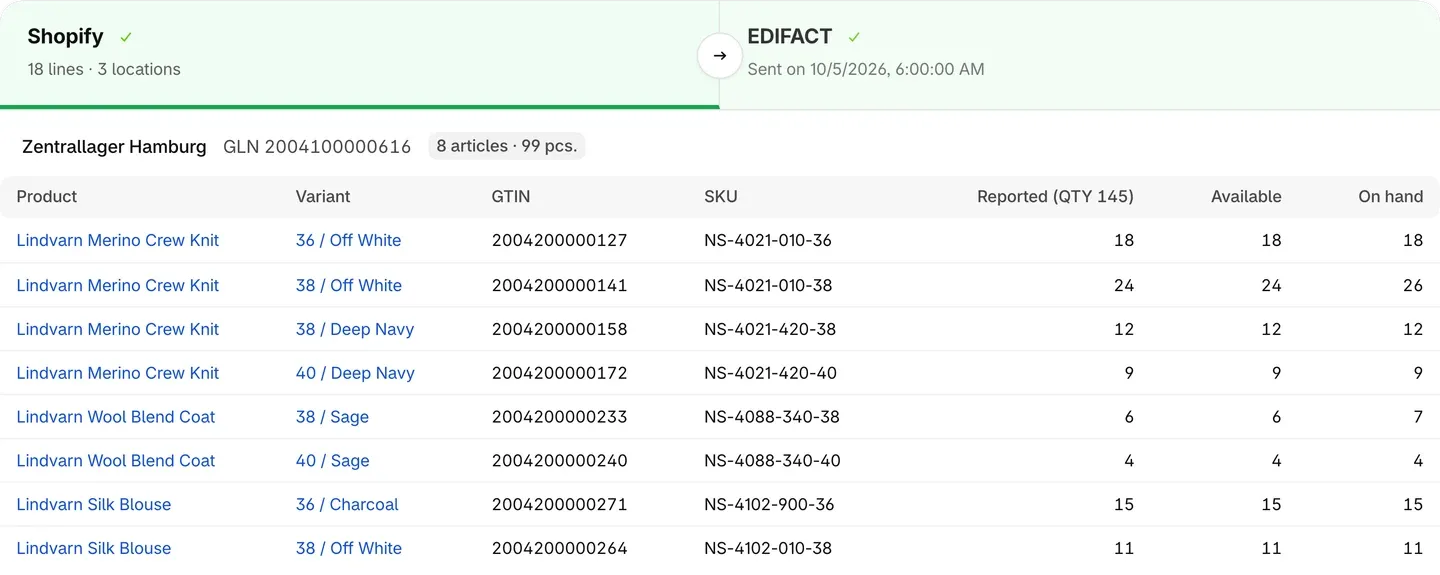
- Shopify data — for stock, per location, every reported article with product and variant (linked in Shopify), GTIN, SKU, the reported quantity, and the available and on-hand stock. For movements, per operation the transfer (from → to, with the transfer number) or the correction (location, adjustment reason) with its articles and the reported quantity.
- EDIFACT — the message generated from it, exactly as it is sent.
Download .EDI gives you the file, Create again rebuilds the report from the current stock, and Send again sends it to the partner once more.
Statuses
Section titled “Statuses”| Status | Meaning |
|---|---|
| Queued / Generating | The stock is being read from Shopify. |
| Ready to send | Created; waiting to be sent or for your review. |
| Sending / Sent | The report is being, or was, sent from your mailbox. |
| Nothing to report | There was no stock or movement to report; nothing was sent. |
| Generation error / Send error | The report page names the reason. |
In rare cases a report is created but its sending cannot be started — a network problem at just the wrong moment. The report then stays Ready to send and says so on its page; Send gets it out.