
Trading partners & outgoing reports
Set up your sender GLN and add trading partners who receive sales (SLSRPT) and inventory (INVRPT) reports by email.
On the Pro plan the app regularly sends your suppliers sales reports (SLSRPT) and inventory reports (INVRPT). To do that, you set up your sender GLN once and add one trading partner per supplier.
Sender GLN
Section titled “Sender GLN”Every outgoing report identifies you as the sender — in the interchange header (UNB) and as the buyer (NAD+BY). The app uses a GLN you set under Settings → Outgoing messages:
- Default location — the app uses this location’s GLN as your sender GLN. Orders for which Shopify knows neither a store nor a fulfillment location are also reported for this location. Only locations with a GLN can be chosen (see Locations & GLNs).
- Different sender GLN (optional) — only needed if your partners know you by a GLN that isn’t a location, e.g. your head office’s GLN. When set, it’s used in the interchange header; the locations in the report stay the same. Sales reports still need a default location — without one there is no location that such orders could be booked on.
Reports can’t be enabled until a sender GLN is set up.
Adding a trading partner
Section titled “Adding a trading partner”Under Settings → Trading partners → Add partner you set:
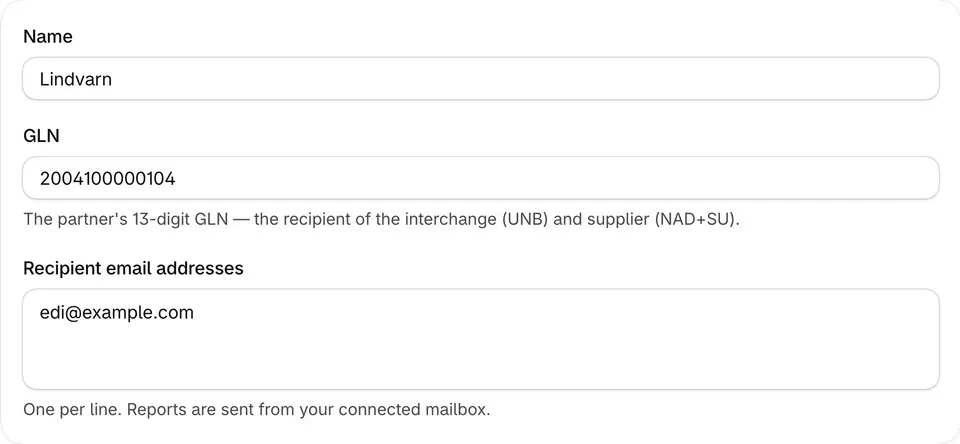
- The supplier’s name and GLN. The GLN is the recipient of the interchange and appears in the report as the supplier (NAD+SU).
- Recipient email addresses — reports are sent to these addresses from your connected mailbox.
- Vendors — a report only contains articles whose Shopify Vendor field is listed here. Pick vendors from your shop or type a spelling yourself; upper and lower case don’t matter.
If a partner already sends you EDI messages, the app suggests their GLN on the partners page.
In the incoming message lists, the Sender column shows the trading partner’s name with its GLN after it in gray; Recipient likewise shows the location the recipient GLN belongs to — for despatch advices, the delivery’s destination location. If no partner exists for a sender GLN yet, the GLN carries an Unknown sender badge. Clicking it opens a new partner with the GLN already filled in.
Schedule
Section titled “Schedule”For each report you choose whether it’s sent daily or weekly, and the send time (in your shop’s time zone).
- Daily — the report covers the previous day.
- Weekly — the report covers the previous week, Monday to Sunday, and is sent on the weekday you choose.
With Send automatically, reports go out without any further click. When it’s off, the app creates the reports and you review and send them yourself. Periods without sales are only sent if Send empty reports is on.
Report from when? (backfill)
Section titled “Report from when? (backfill)”When you enable the sales report, you decide from which day sales are reported:
- From today (no backfill) — the default. The first report covers today; earlier sales aren’t reported.
- From an earlier date — send automatically — the app creates every period since the start date and sends them one after another, oldest first.
- From an earlier date — send on request — reporting runs automatically from today. You send the periods between the start date and today yourself when you’re ready — for example after checking with the supplier.
The start date can be at most 60 days back, because Shopify only provides older orders with an additional approval. Moving the start date later never recalls reports that were already sent.
The inventory report always starts on the day you enable it: stock is a snapshot, and movements are reported from the day you switch them on.
Prices in the sales report
Section titled “Prices in the sales report”Which prices are reported is set shop-wide first (Settings → Outgoing messages). A trading partner can deviate from that when its specification expects something else — from no prices at all to the realized and list price, each excl. and incl. VAT. The SLSRPT page describes the profiles in detail.
Inventory report: content
Section titled “Inventory report: content”Under Content you choose what the partner receives:
- Current stock (absolute) — the complete stock per article and location. Because every report carries the whole stock, the next report automatically corrects a missed one.
- Movements: transfers & corrections — what moved in the closed period: transfers between your locations and manual stock corrections, as relative quantities. Missed periods are caught up.
- Stock and movements — both, as two separate reports on the same schedule.
For stock corrections, Shopify asks for your consent once: when you choose movements, Grant access appears below the content setting. Without it, reports contain transfers only.
The INVRPT page describes what a movement report contains.
- Quantity — Available (not yet committed to orders or reserved) or On hand (all stock physically at the location).
- Include articles with zero stock — by default only articles in stock are listed; missing articles count as zero stock for the partner.
Both settings apply without a schedule too: they define what a report started with “Send now” contains. There, the zero-stock choice can be changed for a single report. The quantity applies to movements too: the change of the chosen quantity is reported.